
Documentation
Sections.
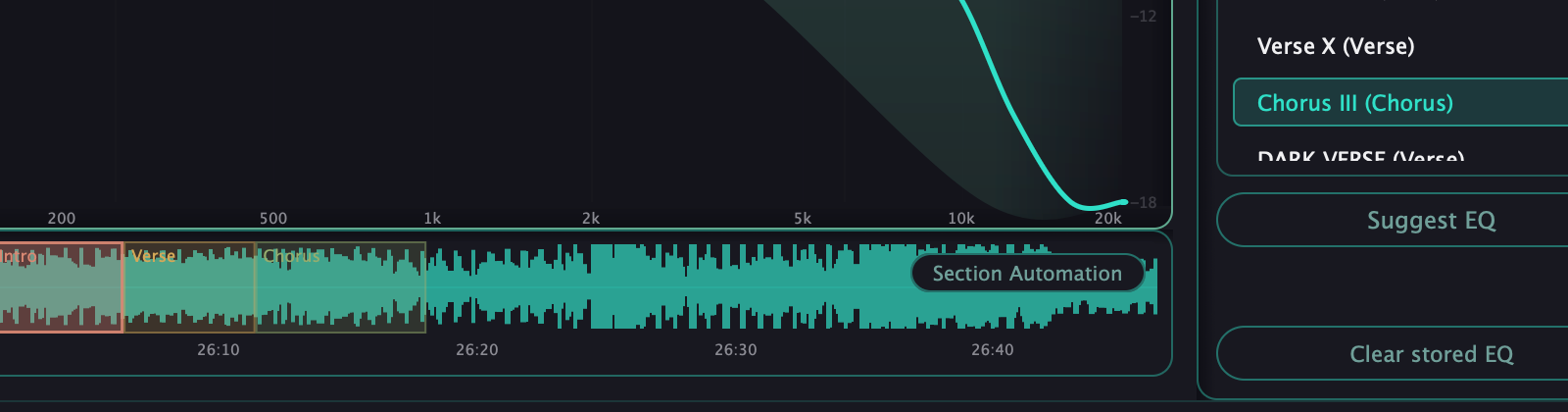
The timeline where each part of the song gets its own target and EQ.
The timeline
A horizontal timeline captures your track's waveform as it plays. Scroll to zoom in and out, drag the ruler to move along the song, and the view follows the playhead while you play. The time labels match your DAW's own timeline.
Creating sections
Click and drag on the waveform to mark a section, then name it — Intro, Verse, Chorus, Bridge, Outro or anything you want. Right-click an existing section to rename or delete it, and drag its edges to resize, pushing the neighbor along like a clip editor. Colors are assigned by creation order and persist between sessions.
Selecting a section
Click a section to select it. Click on an empty part of the timeline to deselect and return to the whole-song context.
Per-section EQ
With a section selected, any manual EQ move saves itself to that section's snapshot automatically — a short Saved flash confirms it. Unmarked gaps between sections use the shared gap snapshot or go back to neutral.
Section Automation
Turning this on makes the plugin apply each section's saved EQ as the playhead crosses into it, with a smooth 300 ms crossfade. Sections without a snapshot go to neutral, and the graph's nodes follow the value actually playing.
Per-section target
Assign a classified reference to a section from the Target panel, and that section now aims at its own target. You can even capture a part of your own mix you love and set it as the section target.
Per-section Suggest EQ
With a section selected, Suggest EQ measures that section's average and proposes moves against that section's own reference. Apply or discard as you prefer — the last decision is always yours.
Section markers persist when you save the session. The waveform itself rebuilds as the playhead passes each part again — the plugin only ever sees what plays in real time.